Python Selenium Interview Questions: Answers and Examples
Automation testing interviews rarely go easy on Selenium. You get asked about locators, waits, and framework design, and a vague answer shows fast. If you are preparing for a QA role, you need Python Selenium interview questions with answers you can actually say out loud, plus code you can write on a whiteboard, the same way our question banks and prep guides for software engineers cover other stacks.
This list gives you exactly that. Each question has a short, direct answer and a working snippet where code helps. Expect the same topics interviewers keep returning to, such as explicit versus implicit waits, handling dynamic elements, and structuring tests with pytest and the Page Object Model. Selenium with Python interview questions tend to start simple and get harder, so the list follows that order.
We built this at Olibr, where we work with recruiters and hiring teams who screen automation testers every week. That view shows what interviewers really look for in a strong answer: clear reasoning, not memorized definitions. The questions below are grouped by category, from basics to advanced framework topics, so you can start at your level and skip what you already know.
1. What is Selenium and why use it with Python?
Sample answer
Selenium is an open-source suite for automating web browsers. It has three parts: WebDriver, which sends commands to a real browser, Selenium Grid, which runs tests on many machines in parallel, and Selenium IDE, a record and playback extension. In interviews, WebDriver is the part that matters most. It works with Chrome, Firefox, Edge, and Safari.
Python's advantages and disadvantages matter here too: it adds short, readable syntax and a strong testing ecosystem. You write less boilerplate than in Java, and pytest gives you fixtures, parametrization, and clean assertions. Since Selenium 4.6, Selenium Manager downloads the right browser driver for you, so setup is one pip install selenium away. Be honest about limits too. Selenium only automates browsers, and it has no built-in reporting.
Selenium drives a real browser, and Python keeps the test code short enough that people can read and maintain it.
Code example
Show that you can write a minimal script from memory. This one opens a page, reads the title, clicks the first link, and closes the browser cleanly.
from selenium import webdriver
from selenium.webdriver.common.by import By

driver = webdriver.Chrome()
try:
    driver.get("https://example.com")
    print(driver.title)
    driver.find_element(By.TAG_NAME, "a").click()
finally:
    driver.quit()
Notice the try and finally block. It guarantees quit() runs even when a step fails, which interviewers like to see.
Follow-up questions to expect
Interviewers rarely stop at the definition. They use it to test how deep your knowledge goes, so prepare short answers to these:
- What is the difference between Selenium 3 and Selenium 4? Mention the W3C WebDriver protocol, relative locators, and Selenium Manager.
- How does WebDriver talk to the browser? Explain that your script sends HTTP requests to a browser driver, which controls the browser.
- What can Selenium not automate? Name desktop apps, native mobile apps on their own, and CAPTCHA.
- Why choose Selenium over Playwright or Cypress? Cite language support, browser coverage, and a mature community.
2. How do you locate elements in Selenium with Python?
Sample answer
Selenium finds elements through the By class, which offers eight locator strategies: ID, NAME, CLASS_NAME, TAG_NAME, LINK_TEXT, PARTIAL_LINK_TEXT, CSS_SELECTOR, and XPATH. Use ID when it is unique and stable, because it is the fastest and clearest option.
When no good ID exists, try CSS selectors first. They are quicker and easier to read than XPath. Choose XPath when you must move up to a parent or match by visible text. Avoid absolute paths like /html/body/div[2]/form, since any layout change breaks them.
Pick the shortest locator that is unique and unlikely to change: ID first, then CSS, then XPath.
Code example
This snippet shows the main strategies side by side, plus a Selenium 4 relative locator that finds an element by its position.
from selenium.webdriver.common.by import By
from selenium.webdriver.support.relative_locator import locate_with

driver.find_element(By.ID, "username")
driver.find_element(By.CSS_SELECTOR, "form .btn.primary")
driver.find_element(By.XPATH, "//button[text()='Login']")
driver.find_element(By.LINK_TEXT, "Forgot password?")
driver.find_element(
    locate_with(By.TAG_NAME, "input").below({By.ID: "username"})
)
Follow-up questions to expect
Locator questions are where interviewers separate people who have written real tests from people who have read a tutorial. Be ready for these:
- What is the difference between absolute and relative XPath? Absolute starts at the root and is brittle. Relative starts with
//and targets attributes. - How do you locate an element with a dynamic ID? Use
contains()orstarts-with()in XPath, or a CSS partial match like[id^='user_']. - Why did the old
find_element_by_idmethods disappear? Selenium 4 removed them in favor offind_element(By.ID, ...). - How do you locate elements inside a shadow DOM? Use
shadow_rooton the host element, then search inside it.
3. What is the difference between find_element and find_elements?
Sample answer
find_element returns a single WebElement, the first match in the DOM. If nothing matches, it raises NoSuchElementException, and your test stops there.
Its plural sibling returns a list of WebElements. When nothing matches, you get an empty list and no exception. That makes find_elements the right tool for counting table rows, looping over links, or checking that an element is absent.
Use find_element when you expect one match, and find_elements when zero matches is a valid outcome.
Code example
This snippet shows both return types and a safe absence check that avoids try and except.
from selenium.webdriver.common.by import By
from selenium.common.exceptions import NoSuchElementException

first = driver.find_element(By.CSS_SELECTOR, "table tr")
rows = driver.find_elements(By.CSS_SELECTOR, "table tr")
print(len(rows))

if not driver.find_elements(By.ID, "error-banner"):
    print("No error shown")

try:
    driver.find_element(By.ID, "missing")
except NoSuchElementException:
    print("Not found")
Follow-up questions to expect
Interviewers use this as a warm-up among Python Selenium interview questions, then probe the edge cases to see if you have hit them in real tests:
- What does find_elements return when nothing matches? An empty list, so
len()is 0. - Does find_element wait for the element? Only if an implicit wait is set. Otherwise it fails immediately.
- How do you read the text of every match? Use a list comprehension:
[e.text for e in rows]. - Which one is safer for checking that something is gone?
find_elements, because it never raises.
4. What are implicit, explicit, and fluent waits?
Sample answer
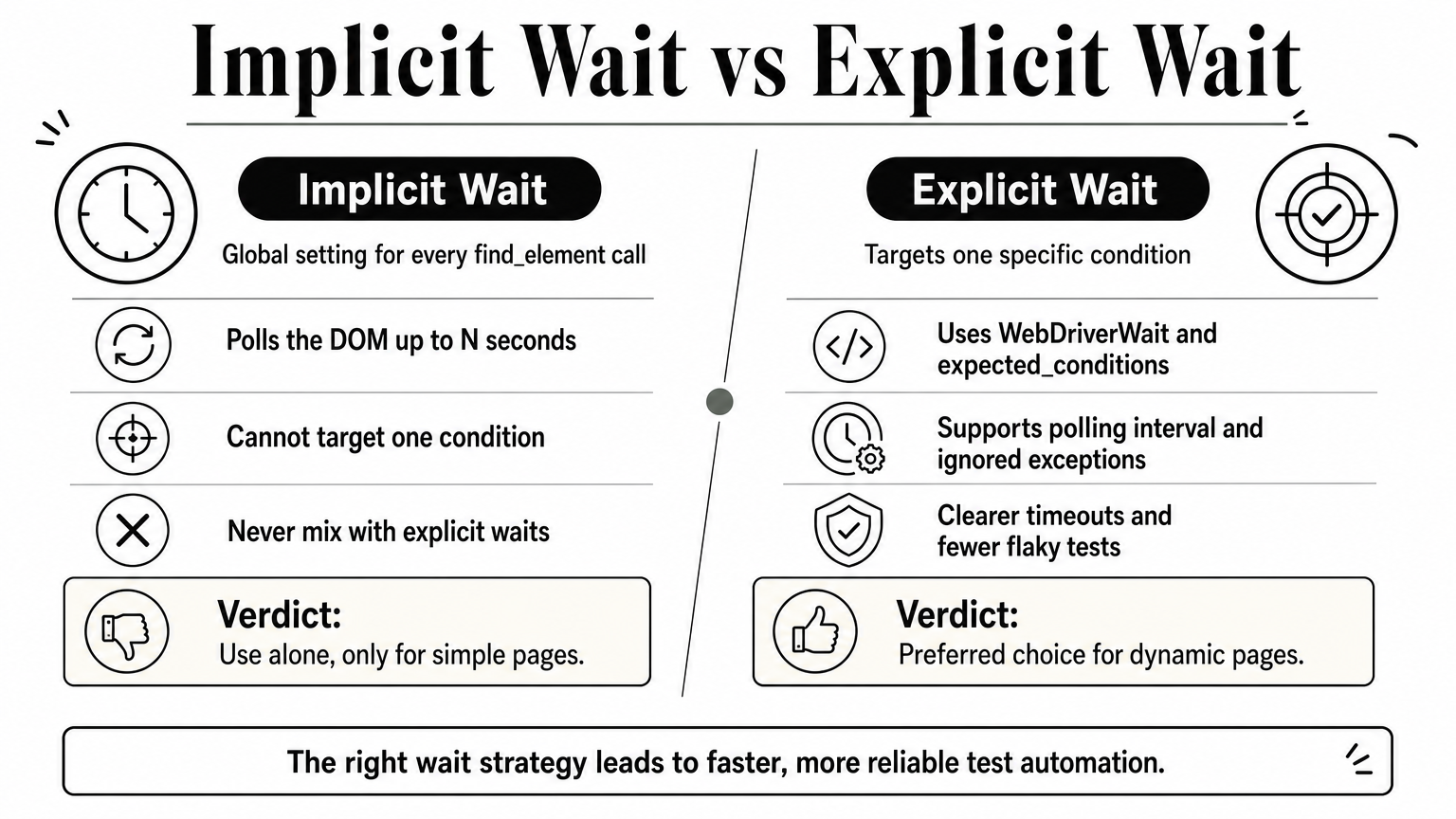
Waits stop your script from acting before the page is ready. An implicit wait is a global setting that makes every find_element call poll the DOM for up to N seconds. An explicit wait targets one condition, such as an element being clickable, using WebDriverWait and expected_conditions.
A fluent wait is an explicit wait with finer control. You set the polling interval and the exceptions to ignore. In Python, WebDriverWait already accepts both, so it covers this. Prefer explicit waits, and never mix them with implicit waits, because the timeouts can stack unpredictably.
Use explicit waits for conditions, and never mix them with implicit waits.
Code example
This snippet shows the global setting first, then an explicit wait and a fluent-style wait.
from selenium.webdriver.common.by import By
from selenium.webdriver.support.ui import WebDriverWait
from selenium.webdriver.support import expected_conditions as EC
from selenium.common.exceptions import NoSuchElementException

driver.implicitly_wait(5)  # global, use alone

wait = WebDriverWait(driver, 10)
btn = wait.until(EC.element_to_be_clickable((By.ID, "submit")))

fluent = WebDriverWait(
    driver, 20, poll_frequency=1,
    ignored_exceptions=[NoSuchElementException]
)
fluent.until(EC.visibility_of_element_located((By.ID, "result")))
Follow-up questions to expect
Wait questions usually turn into a flaky test discussion, so have these ready:
- Why not use
time.sleep()? It adds a fixed delay and still fails when the page is slower. - What is the default polling interval? 0.5 seconds.
- What happens on timeout?
WebDriverWaitraisesTimeoutException. - What if implicit and explicit waits are both set? Total wait time becomes hard to predict.
5. How do you handle dropdowns with the Select class?
Sample answer
The Select class from selenium.webdriver.support.ui wraps a standard HTML <select> element. You pass it the located element, then pick an option by visible text, value, or index. Visible text is the most readable choice, and index is the most fragile.
Multi-select lists need more. Check is_multiple, then use deselect_by_visible_text() or deselect_all() to clear choices. Be careful with modern sites, though. Many build custom dropdowns from div and ul tags, and Select raises UnexpectedTagNameException on them.
Select works only on real select tags, so for custom dropdowns you click to open the list and click the option.
Code example
This snippet covers the three selection methods and reads the result back.
from selenium.webdriver.common.by import By
from selenium.webdriver.support.ui import Select

dropdown = Select(driver.find_element(By.ID, "country"))
dropdown.select_by_visible_text("India")
dropdown.select_by_value("us")
dropdown.select_by_index(2)

print(dropdown.first_selected_option.text)
print([o.text for o in dropdown.options])
Follow-up questions to expect
Dropdown topics show up in most Python Selenium interview questions because they test whether you know when a built-in helper stops working. Prepare for these:
- How do you handle a dropdown that is not a select tag? Click it, wait for the options, then click the one you want.
- How do you verify all options? Loop over
dropdown.optionsand compare the text to an expected list. - How do you select several values? Call a select method repeatedly on a multi-select.
- What does
all_selected_optionsreturn? A list of every chosen option.
6. How do you handle alerts and popups?
Sample answer
JavaScript alerts are not part of the DOM, so locators cannot find them. You call driver.switch_to.alert to take control of the dialog, then use accept(), dismiss(), text, or send_keys(). There are three types: alert (OK only), confirm (OK and Cancel), and prompt (text input).
Timing matters. If you switch before the dialog appears, Selenium raises NoAlertPresentException, so wait with EC.alert_is_present(). Also separate JavaScript alerts from HTML modals. A modal built from div tags is an ordinary element, so you locate and click it like any other.
A JavaScript alert needs switch_to.alert, while an HTML modal is just another element.
Code example
This snippet waits for an alert, reads its text, and handles a prompt.
from selenium.webdriver.common.by import By
from selenium.webdriver.support.ui import WebDriverWait
from selenium.webdriver.support import expected_conditions as EC

driver.find_element(By.ID, "delete").click()
WebDriverWait(driver, 5).until(EC.alert_is_present())

alert = driver.switch_to.alert
print(alert.text)
alert.accept()      # or alert.dismiss()

driver.find_element(By.ID, "rename").click()
prompt = driver.switch_to.alert
prompt.send_keys("New name")
prompt.accept()
Follow-up questions to expect
Expect the interviewer to move from JavaScript dialogs to other popup types, where Selenium needs a different approach:
- How do you handle a browser notification popup? Disable it with a Chrome option such as
--disable-notifications. - How do you handle basic authentication? Put credentials in the URL, like
https://user:pass@site.com. - Can you inspect an alert with developer tools? No, because it is not in the DOM.
- What happens if you ignore an open alert? Selenium raises UnexpectedAlertPresentException.
7. How do you handle iframes, windows, and tabs?
Sample answer
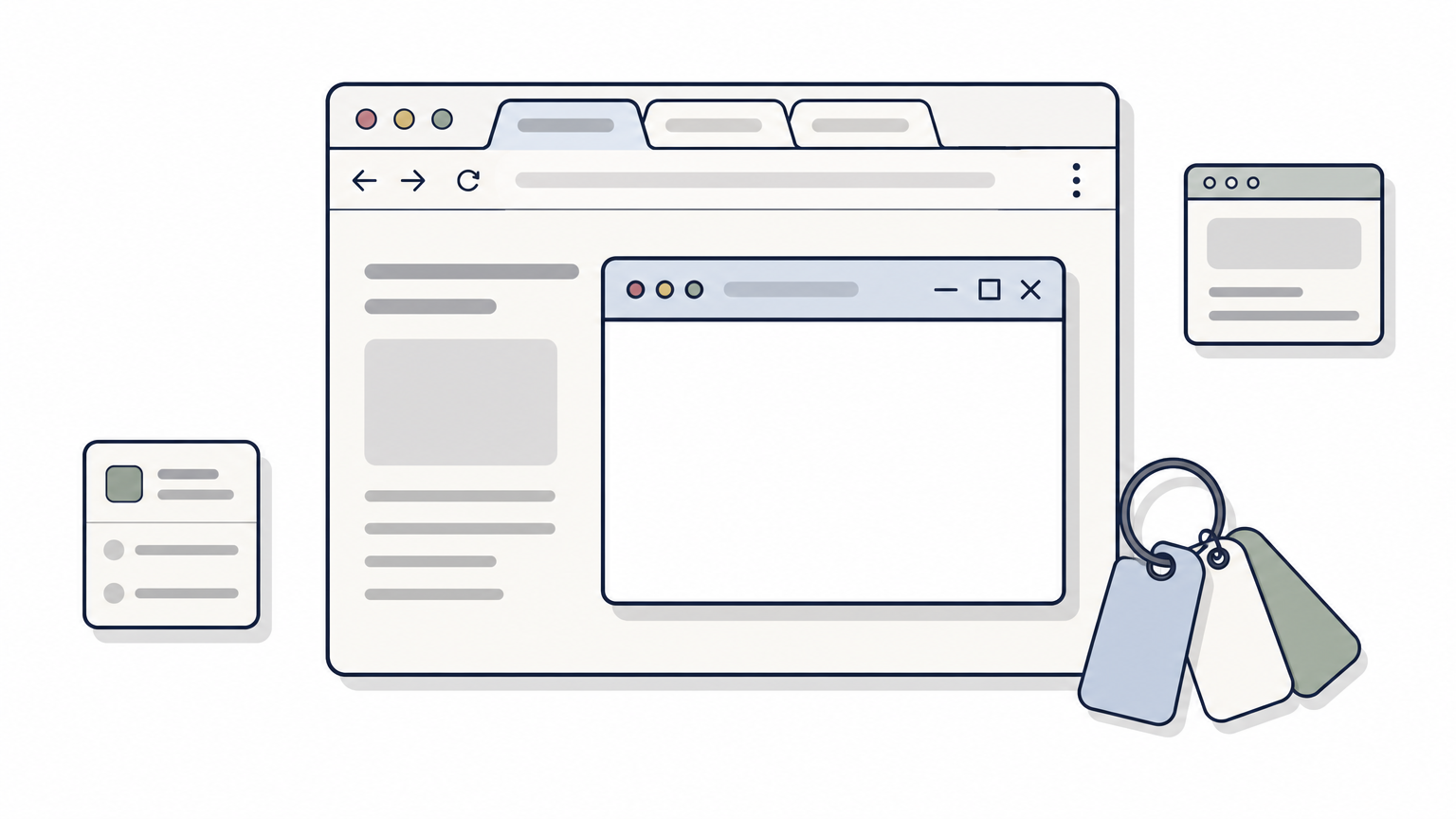
An iframe is a separate document inside the page, so Selenium cannot see its elements until you switch into it. Use driver.switch_to.frame() with a name, ID, or WebElement, then switch_to.default_content() to return. Forgetting to switch back causes NoSuchElementException on elements you can plainly see.
Windows and tabs work through window handles. Save the original handle, read driver.window_handles, then call switch_to.window(handle). Selenium 4 also adds switch_to.new_window("tab").
Selenium sees one context at a time, so switch in, do the work, and switch back.
Code example
This snippet enters a frame, then opens a link in a new window and returns.
WebDriverWait(driver, 10).until(
    EC.frame_to_be_available_and_switch_to_it((By.ID, "payment"))
)
driver.find_element(By.ID, "card").send_keys("4111")
driver.switch_to.default_content()

main = driver.current_window_handle
driver.find_element(By.LINK_TEXT, "Help").click()
WebDriverWait(driver, 10).until(EC.number_of_windows_to_be(2))
for h in driver.window_handles:
    if h != main:
        driver.switch_to.window(h)
driver.close()
driver.switch_to.window(main)
Follow-up questions to expect
Selenium with Python interview questions on this topic often move to edge cases that cause real flaky failures:
- How do you handle nested iframes? Switch one level at a time, or use
switch_to.parent_frame()to go back up. - What happens if you close a window and do not switch? Selenium raises NoSuchWindowException.
- Why wait before switching? The frame or new window may not exist yet.
8. How do you use ActionChains for mouse and keyboard actions?
Sample answer
ActionChains covers interactions that a plain click() cannot, such as hover, double click, right click, and drag and drop. You queue actions in a chain, then call perform() to run them. Forget perform() and nothing happens. Interviewers see that mistake often.
Keyboard input goes through the Keys class. Hold a modifier with key_down(), type with send_keys(), and release with key_up(). Selenium 4 also adds scroll_to_element() for scrolling through the same API.
Actions only queue up in the chain, and nothing runs until you call perform().
Code example
This snippet hovers over a menu, double clicks, right clicks, drags, and sends Ctrl+A.
from selenium.webdriver import ActionChains
from selenium.webdriver.common.by import By
from selenium.webdriver.common.keys import Keys

actions = ActionChains(driver)
menu = driver.find_element(By.ID, "menu")
actions.move_to_element(menu).perform()
actions.double_click(driver.find_element(By.ID, "cell")).perform()
actions.context_click(driver.find_element(By.ID, "row")).perform()
actions.drag_and_drop(
    driver.find_element(By.ID, "src"),
    driver.find_element(By.ID, "target"),
).perform()
actions.key_down(Keys.CONTROL).send_keys("a").key_up(Keys.CONTROL).perform()
Follow-up questions to expect
In most Selenium Python interview questions on this topic, the follow-ups test real-world failures rather than syntax:
- Why does drag and drop fail on some sites? HTML5 drag events can ignore it. Use
click_and_hold(),move_to_element(), andrelease(), or fall back to JavaScript. - How do you open a hover menu? Call
move_to_element()on the parent, then wait for the submenu before clicking. - What does
reset_actions()do? It clears queued actions.
9. What is the difference between close() and quit()?
Sample answer
close() shuts the current window or tab that the driver is focused on. The session and the driver process stay alive if other windows are still open. quit() ends the entire WebDriver session, closes every window, and stops the driver process.
Use quit() at the end of every test. Skipping it leaves orphaned browser and driver processes that eat memory, which hurts most on shared CI machines. Reserve close() for the moment you want to shut one tab and keep working in another, and switch back to a remaining handle right after.
close() ends one window, quit() ends the whole session, and every test should finish with quit().
Code example
This snippet opens a second tab, closes only that tab, and then ends the session with quit().
driver.get("https://example.com")
driver.switch_to.new_window("tab")
driver.get("https://example.org")

driver.close()  # closes only the new tab
driver.switch_to.window(driver.window_handles[0])
print(driver.title)  # still works

driver.quit()  # ends the session
# any command now raises InvalidSessionIdException
Follow-up questions to expect
Expect the interviewer to test whether you know the cleanup rules in a real framework:
- What happens if you call
close()on the last open window? The browser closes, but the driver process can linger, so callquit()anyway. - What happens if you send a command after
quit()? Selenium raises InvalidSessionIdException, because the session no longer exists. - Where do you put
quit()in pytest? In the fixture teardown, afteryield, so it runs even when the test fails.
10. How do you handle dynamic elements and stale element errors?
Sample answer
Dynamic elements change after load. Their IDs are generated per session, or they appear late through AJAX. Target them with stable attributes such as data-testid, contains() in XPath, or a CSS prefix match, then add an explicit wait so Selenium acts only when the element is ready.
A StaleElementReferenceException means your WebElement points to a node that left the DOM. It usually happens after a refresh, a re-render, or a navigation. The fix is to re-locate the element instead of reusing the old reference. Store locators as tuples, not WebElements.
A WebElement is a pointer to one DOM node, so when the page re-renders, find the element again.
Code example
This helper retries a click and re-finds the element on every attempt.
from selenium.common.exceptions import StaleElementReferenceException

def click_with_retry(driver, locator, attempts=3):
    for _ in range(attempts):
        try:
            WebDriverWait(driver, 10).until(
                EC.element_to_be_clickable(locator)
            ).click()
            return
        except StaleElementReferenceException:
            pass
    raise AssertionError(f"Still stale: {locator}")
Follow-up questions to expect
Expect questions about flaky tests and how you diagnose them:
- How do you wait for a page refresh to finish? Use
EC.staleness_of(old_element). - Why is a retry loop a patch and not a fix? It hides the real cause, such as a missing wait.
- Can
find_elementreturn a stale element? No, but one you stored earlier can go stale.
11. How do you scroll, take screenshots, and upload files?
Sample answer
Selenium has no dedicated scroll command, so you run JavaScript through execute_script(). Use scrollIntoView() to bring an element into view, or window.scrollTo() for a fixed position. Selenium 4 also adds ActionChains.scroll_to_element() for a pure Selenium approach.
Screenshots are built in. save_screenshot() writes a PNG of the viewport, and element.screenshot() captures one element. For uploads, send the absolute file path with send_keys() to the input type="file" element. Do not click the button, because the native OS dialog is outside Selenium's reach.
To upload a file, skip the dialog and send the file path straight to the file input.
Code example
This snippet scrolls, captures a full viewport and a single element, and uploads a resume.
import os

btn = driver.find_element(By.ID, "submit")
driver.execute_script("arguments[0].scrollIntoView(true);", btn)
driver.execute_script("window.scrollTo(0, document.body.scrollHeight);")

driver.save_screenshot("page.png")
driver.find_element(By.ID, "logo").screenshot("logo.png")

path = os.path.abspath("resume.pdf")
driver.find_element(By.CSS_SELECTOR, "input[type='file']").send_keys(path)
Follow-up questions to expect
Interviewers use this topic to check practical debugging habits, so expect questions like these:
- How do you capture a screenshot when a test fails? Use a pytest hook or fixture teardown that calls
save_screenshot(). - How do you take a full page screenshot? Firefox offers
get_full_page_screenshot_as_file(). In Chrome, use the DevTools protocol. - What if the file input is hidden? Make it visible with JavaScript, then send the path.
- Why use an absolute path? A relative path breaks when the working directory changes.
12. What is the Page Object Model and why does it matter?
Sample answer
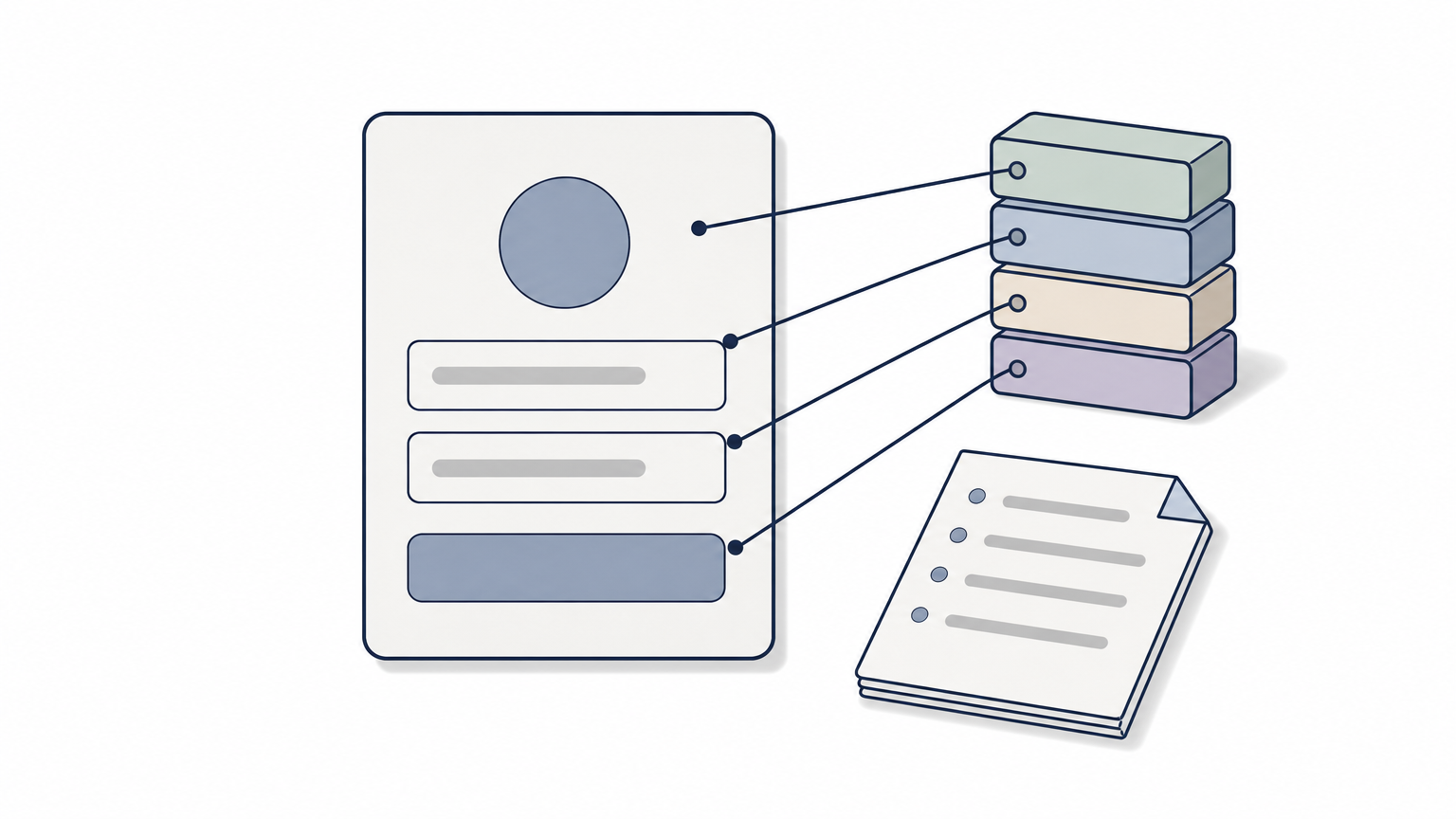
The Page Object Model (POM) is a design pattern where each page gets its own class. The class holds that page's locators and actions, and tests only call the actions. A UI change then means one edit instead of fifty.
Keep assertions out of page classes. Pages expose behavior such as login(), and tests decide what counts as a pass. Interviewers like hearing this separation, because it shows you have maintained a suite past its first month.
Tests describe what a user does, and page objects know how the page does it.
Code example
Here is a minimal login page object and the test that uses it.
class LoginPage:
    USER = (By.ID, "username")
    PASS = (By.ID, "password")
    SUBMIT = (By.CSS_SELECTOR, "button[type='submit']")

    def __init__(self, driver):
        self.driver = driver

    def login(self, user, pwd):
        self.driver.find_element(*self.USER).send_keys(user)
        self.driver.find_element(*self.PASS).send_keys(pwd)
        self.driver.find_element(*self.SUBMIT).click()

def test_valid_login(driver):
    driver.get("https://example.com/login")
    LoginPage(driver).login("qa_user", "secret")
    assert "Dashboard" in driver.title
Follow-up questions to expect
Expect the conversation to move toward framework design and the trade-offs of POM:
- Does Python have PageFactory? No, that is a Java feature. Python uses plain classes with locator tuples.
- What goes in a BasePage class? Shared helpers, such as a click that waits first.
- What are the downsides? More files, and overengineering on small suites.
13. How do you use pytest fixtures and conftest.py with Selenium?
Sample answer
A fixture is a function that prepares and cleans up whatever a test needs, such as a browser. Mark it with @pytest.fixture, and any test that names it as an argument receives its value. Code after yield is teardown, so quit() runs even when the test fails.
The conftest.py file is where shared fixtures live. Pytest discovers it automatically, so you never import it. Scope sets the lifetime: function gives every test a fresh browser, while session shares one browser and runs faster but leaks state between tests.
Put the driver in a fixture inside conftest.py, and let yield handle teardown.
Code example
This conftest reads a browser name from the command line, and the test just asks for driver.
# conftest.py
import pytest
from selenium import webdriver

def pytest_addoption(parser):
    parser.addoption("--browser", default="chrome")

@pytest.fixture
def driver(request):
    name = request.config.getoption("--browser")
    drv = webdriver.Firefox() if name == "firefox" else webdriver.Chrome()
    drv.maximize_window()
    yield drv
    drv.quit()

# test_home.py
def test_title(driver):
    driver.get("https://example.com")
    assert "Example" in driver.title
Follow-up questions to expect
These Selenium Python interview questions move toward framework design, so prepare short answers that show you have built a suite:
- What is the default fixture scope?
function. - How do you run one test with many data sets? Use
@pytest.mark.parametrize. - Why use fixtures instead of setUp and tearDown methods? Fixtures are explicit, reusable, and scoped.
- How do you share a logged-in session? Use a
sessionormodulescoped fixture.
14. How do you run headless, parallel, and CI tests?
Sample answer
Headless mode runs the browser without a visible window, which suits servers with no display. Chrome uses --headless=new. Set a window size too, because the default headless viewport is small and can hide elements.
Parallel runs cut suite time. With pytest-xdist, the command pytest -n 4 spreads tests across four workers, so every test needs its own driver from a function-scoped fixture. For cross-browser scale, point webdriver.Remote at Selenium Grid.
Parallel tests must be independent, so give every test its own driver and its own data.
In CI, such as GitHub Actions, the pipeline installs dependencies and runs pytest headless on every push. Inside Docker, add --no-sandbox and --disable-dev-shm-usage to avoid crashes.
Code example
from selenium.webdriver.chrome.options import Options

@pytest.fixture
def driver():
    opts = Options()
    opts.add_argument("--headless=new")
    opts.add_argument("--window-size=1920,1080")
    opts.add_argument("--no-sandbox")
    drv = webdriver.Chrome(options=opts)
    yield drv
    drv.quit()

# run: pytest -n 4 --junitxml=report.xml
Follow-up questions to expect
These Python Selenium interview questions test whether you have run a suite outside your laptop:
- Why does a test pass headed but fail headless? Usually the viewport size, or an element hidden by layout.
- How do you avoid shared state in parallel runs? Use unique test data and never a session-scoped driver.
- How do you debug a CI failure? Save screenshots on failure and upload them as build artifacts.
15. How do you handle CAPTCHA, OTP, and broken links?
Sample answer
CAPTCHA exists to block automation, so do not try to solve it with Selenium. Ask for a test environment where it is disabled, or use the reCAPTCHA test keys that Google provides for automated testing.
Never automate around a CAPTCHA. Change the test environment so it never appears.
OTP follows the same logic. Ask for a fixed code such as 123456 in the test environment, or fetch the real one from an API, a database, or a test inbox. Broken links need no clicks at all. Collect every href, then send HTTP requests and flag status codes of 400 or above.
Code example
This snippet gathers every link on the page and checks each one with the requests library.
import requests
from selenium.webdriver.common.by import By

links = driver.find_elements(By.TAG_NAME, "a")
urls = {a.get_attribute("href") for a in links}
broken = []
for url in urls:
    if not url or not url.startswith("http"):
        continue
    code = requests.head(url, allow_redirects=True, timeout=10).status_code
    if code >= 400:
        broken.append((url, code))
assert not broken, f"Broken links: {broken}"
Follow-up questions to expect
These Python Selenium interview questions check whether you know where UI automation should stop:
- Why use HEAD instead of GET? It is lighter, but some servers return 405, so fall back to GET.
- What if there is no OTP test hook? Poll a test inbox API with a wait and a timeout.
- Why is a link check slow on big pages? Requests run one by one, so use a thread pool.
Preparing for your interview
Strong answers to Python Selenium interview questions come down to clear reasoning, not recall. For each of the 15 topics, you should be able to explain why you chose a locator, a wait, or a fixture, and what breaks when you choose wrong.
Practice by writing each snippet from memory in an editor, then running it against a real page. Talking through a failure, such as a stale element or a forgotten perform(), shows real experience better than a polished definition.
Once you feel ready, let employers come to you. Olibr matches tech talent to open roles with AI, and recruiters search it every day. Create a free candidate profile and get matched to tech roles by AI, so 500+ recruiters hiring automation testers can find you.
For engineers
Find work worth your time.
Live engineering roles across India and the US, matched to your stack. Build a profile recruiters actually discover.