How to Find Candidates on LinkedIn: Free + Recruiter Tips
LinkedIn has over a billion users, which makes it the single largest professional network recruiters can tap into. But knowing how to find candidates on LinkedIn effectively is a different skill entirely. Most recruiters either overpay for premium tools or waste hours scrolling through profiles that don't match their requirements.
The good news: you don't need an expensive subscription to source quality talent. Whether you're using LinkedIn Recruiter, Boolean search strings, or simple manual techniques, there are proven methods that cut through the noise and surface the right people faster. The trick is knowing which approach fits your hiring needs and budget.
This guide breaks down both free and paid strategies for finding candidates on LinkedIn, step by step. And if you want to take sourcing further, Olibr's free recruiting platform lets you search 180,000+ candidate profiles with AI-powered matching, so LinkedIn becomes one channel in a much larger hiring toolkit.
What you need before you start sourcing
Before you search a single profile, you need three things in place: a precise sourcing brief, a clear understanding of your LinkedIn access level, and a basic tracking system. Skipping this prep work is why most recruiters end up with bloated candidate lists they can't act on. Spending 30 minutes here upfront saves you hours of wasted outreach later.
A job brief that goes beyond the job description
Most job descriptions are written for candidates, not for sourcing. When you're figuring out how to find candidates on LinkedIn, you need a sourcing brief: a structured internal document that translates role requirements into searchable attributes. This is different from a job posting because it's built to guide your search filters and Boolean strings, not to sell the role to applicants.
A sourcing brief should answer: what does the right person do today, not just what their title says.
Your sourcing brief should capture these elements before you open LinkedIn:
| Element | What to include |
|---|---|
| Current job titles | 3-5 titles the ideal candidate likely holds right now |
| Must-have skills | Hard skills you won't compromise on (e.g., Python, IFRS, Salesforce) |
| Nice-to-have skills | Skills that help but aren't dealbreakers |
| Company types | Startups, enterprises, specific industries, or direct competitors |
| Location | City, metro area, or remote-eligible regions |
| Experience range | Years of experience or seniority signals |
| Red flags | Roles, gaps, or patterns that disqualify a candidate |
Fill this out with the hiring manager before you touch LinkedIn. The more specific your brief, the more precise your search filters will be.
Know which LinkedIn access level you have
LinkedIn offers three main sourcing tiers, and each one changes what you can and can't do. Knowing where you sit before you start prevents you from hitting walls mid-search and helps you plan realistic volume expectations.
- Free LinkedIn account: You get limited search results (roughly 100 per search), restricted profile visibility outside your network, and no InMail credits. You can still source with Boolean strings in the standard search bar, but you'll hit limits quickly on larger searches.
- LinkedIn Premium (Career or Business): You get a few InMail credits per month and slightly better search visibility, but no Recruiter-specific filters. This tier works for occasional sourcing but not high-volume or multi-role hiring.
- LinkedIn Recruiter: Full Boolean support across all fields, 40+ advanced filters, unlimited profile views, and bulk InMail capability. This is the right tier if you're filling multiple roles at the same time.
Knowing your access level upfront lets you pick the right search approach from the start rather than adapting halfway through.
A tracking system before you send your first message
Without a tracking system in place, candidates fall through the gaps. You don't need expensive software for this step. A simple spreadsheet with consistent columns works well, especially when you're sourcing across multiple channels simultaneously.
Your tracking sheet should include at minimum:
- LinkedIn profile URL (so you can return to the profile without re-searching)
- Full name and current title
- Status (new, messaged, responded, declined, moved to ATS)
- Date of first contact
- Notes on fit or key conversation details
Set this up in Google Sheets before you reach out to anyone. Once you start sourcing at scale, this structure separates a manageable pipeline from a chaotic inbox. If you're already using an ATS like Olibr, you can route candidates directly into a structured pipeline and skip the manual spreadsheet step entirely.
Step 1. Turn the role into a searchable talent map
A job title on a requisition form rarely matches what the right candidate actually calls themselves on LinkedIn. Before you learn how to find candidates on LinkedIn at any useful scale, you need to translate the role into the actual words candidates use in their profiles. This translation step is what separates a targeted search from a broad scroll through irrelevant results. Spend 20 minutes here, and every search you run from this point will return tighter, more relevant results.
Map job titles to real-world variations
Most roles carry more than one valid title depending on company type, industry, or region. A "Software Engineer" at a startup might be called a "Backend Developer" or "Full Stack Developer" at another company. Your first task is to list every realistic title variation the person you want to hire might currently hold, then group those variations by seniority tier.
Here's a simple mapping framework for a mid-level product management role:
| Seniority tier | Likely LinkedIn titles |
|---|---|
| Mid-level | Product Manager, Associate PM, Product Owner |
| Senior | Senior Product Manager, Lead Product Manager |
| Adjacent | Program Manager, Strategy Manager, Growth Manager |
Use this table to build your actual search input, not to select one correct title. The goal at this stage is coverage, not precision. Precision comes in the next step.
Build your Boolean string before you touch the search bar
Once you have your title map, convert it into a Boolean search string you can paste directly into LinkedIn's search bar. Boolean logic lets you combine terms using AND, OR, and NOT operators to control exactly what LinkedIn surfaces for you.
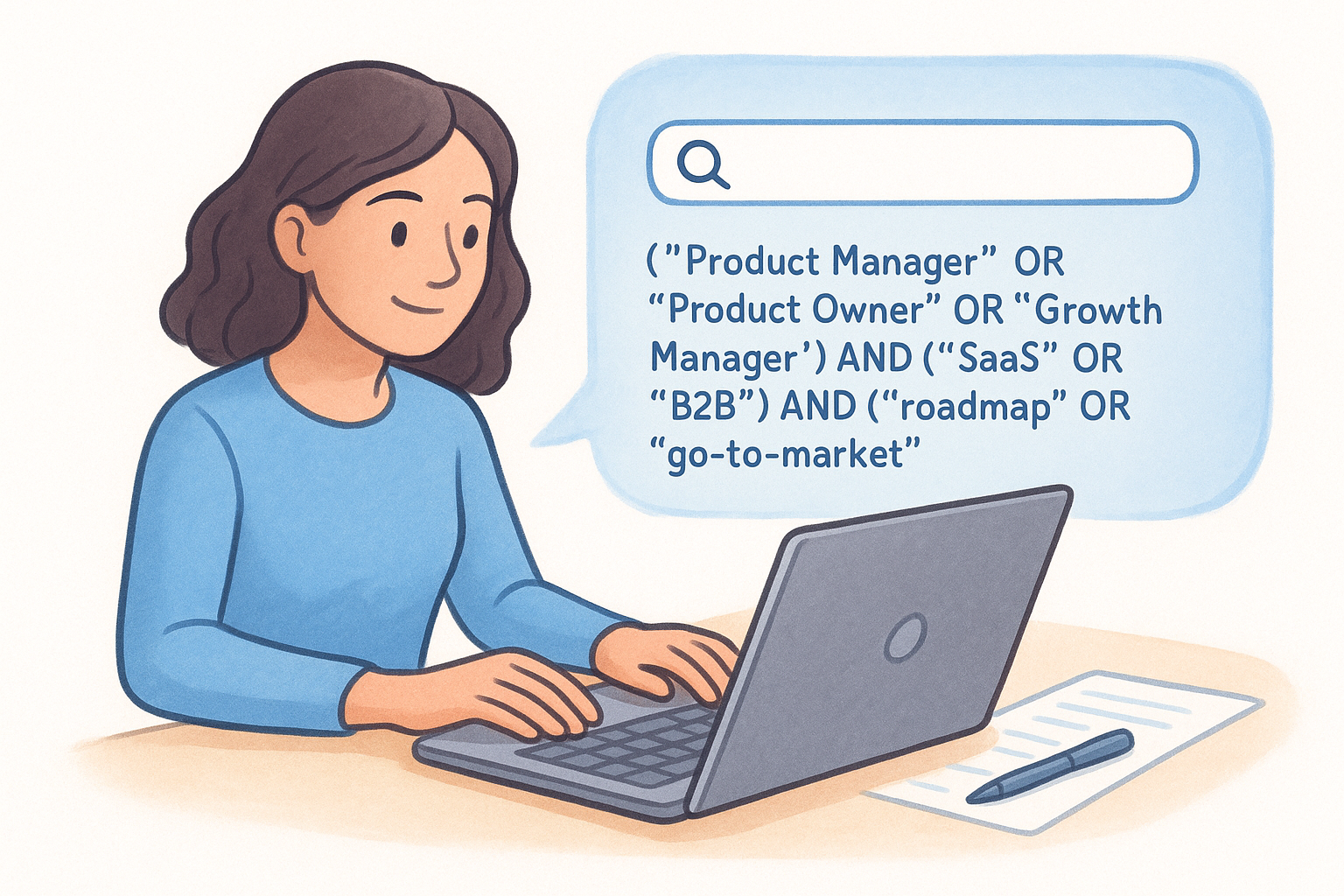
A Boolean string built before you search will produce tighter results in the first pass than any filter combination applied after the fact.
For the product management role above, your string might look like this:
("Product Manager" OR "Product Owner" OR "Growth Manager") AND ("SaaS" OR "B2B") AND ("roadmap" OR "go-to-market")
Keep your string modular by writing it in a plain text document before you paste it anywhere. This lets you swap terms quickly as you refine. If a first-pass search returns too few results, remove one AND condition. If it returns too many, add a more specific qualifier like a required skill or industry term. Iterating this way is far faster than rebuilding the search from scratch with each new role you fill.
Step 2. Find candidates on LinkedIn for free
You don't need a paid subscription to surface strong candidates on LinkedIn. The free version of the platform, used with clear intent, gives you access to a meaningful portion of its talent pool. The key is working within its limitations deliberately rather than stumbling into them mid-search. This section covers three techniques that help you source more effectively without spending a dollar.
Use Boolean search in the standard search bar
Boolean search strings work directly in LinkedIn's free search bar, and this is the most powerful free tool available to you when figuring out how to find candidates on LinkedIn without a paid account. After running your search, switch the results view to "People" and use the built-in location, current company, and industry filters to tighten the output without touching any paid feature.
Here's a ready-to-use Boolean template for a data analyst role:
("Data Analyst" OR "Business Analyst" OR "Analytics Manager") AND ("SQL" OR "Python") AND ("e-commerce" OR "retail")
Paste this directly into the LinkedIn search bar, hit enter, and click "People." You'll get a focused result set immediately.
The standard search bar supports full Boolean logic, including AND, OR, NOT, and quoted phrases, which gives you significant range even on a free account.
Work your second-degree connections first
Second-degree connections are candidates who share at least one mutual connection with you, and they respond to outreach at a noticeably higher rate than cold contacts. When you run a people search, filter results to show only 2nd-degree connections. This narrows the pool, but it raises your reply rate significantly because you can reference the shared connection in your opening message.
After identifying strong second-degree profiles, check who your mutual contact is. Reach out to that mutual contact first with a short message asking for a warm introduction. A warm introduction converts to a conversation at a far higher rate than a cold message to someone who has no context for who you are.
Save searches and set up alerts
LinkedIn lets free account holders save up to three searches and receive weekly email notifications when new profiles match those criteria. This means you don't have to re-run the same search manually each week. Set up a saved search for your highest-priority open role, and LinkedIn will surface new matching candidates automatically.
To save a search, run your Boolean query, apply your filters, and click "Create search alert" in the top-right corner of the results page. LinkedIn sends a weekly digest with new profiles that fit, giving you passive sourcing with no additional effort on your end.
Step 3. Use LinkedIn Recruiter to narrow fast
LinkedIn Recruiter gives you 40+ filters and unlimited profile views, which means the challenge shifts from finding candidates to filtering down from too many matches. If you already have your Boolean string and sourcing brief ready from the earlier steps, LinkedIn Recruiter becomes a precision tool rather than a broad directory. The goal in this step is to use Recruiter-specific features to get from thousands of potential matches to a shortlist of 20-30 candidates worth messaging within an hour.
Stack Spotlights with your Boolean search
The Spotlights feature in LinkedIn Recruiter flags candidates based on behavioral signals: who has recently changed jobs, who is open to opportunities, who follows your company, and who has engaged with your posts. These signals are invisible on free accounts, and they're the fastest way to prioritize your shortlist without reviewing every profile manually.
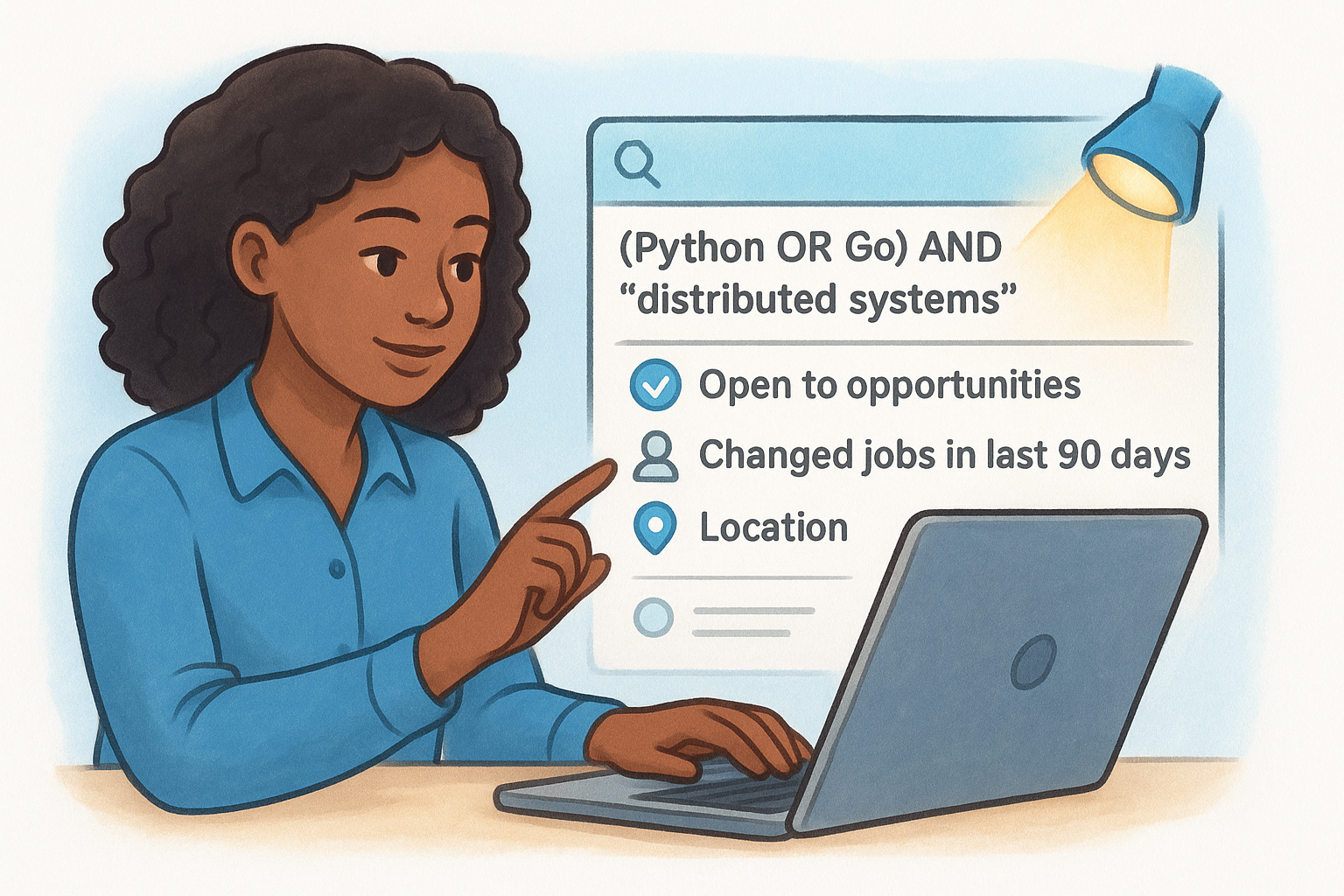
Filtering for "Open to Work" signals and recent job changes together surfaces candidates who are actively considering moves, which lifts reply rates significantly.
To use Spotlights effectively, run your Boolean string first, then apply Spotlight filters as a secondary layer. Combine them with location, years of experience, and current company size to tighten results further. A practical filter stack for a senior engineer role might look like this:
- Boolean:
("Software Engineer" OR "Backend Engineer") AND ("Python" OR "Go") AND "distributed systems" - Spotlights: Open to opportunities + changed jobs in the last 90 days
- Filters: 5-10 years experience, company size 50-500, United States
This combination typically reduces a pool of thousands to a workable list of 50-100 strong matches.
Send InMail that earns a reply
Most InMail messages fail because they focus on the company, not the candidate. When you think about how to find candidates on LinkedIn at scale, outreach quality determines whether your sourcing actually converts to conversations. Keep your InMail under 100 words and make it clear you reviewed the candidate's actual background, not just their title.
Use this template as your starting point:
Hi [Name],

Your work on [specific project or skill from their profile] caught my attention.
We're building [brief, specific description] at [Company], and this role maps
directly to what you've been doing at [their current company].

Worth a quick conversation? I can work around your schedule.

[Your name]
Replace every bracketed element with specific details from the candidate's profile. Generic InMail is easy to ignore. A message that references actual work is much harder to dismiss.
Step 4. Screen quickly and reach out effectively
Finding candidates is only half the work. Once you have a shortlist, you need to assess fit quickly and reach out in a way that actually gets a response. Most recruiters spend too long reviewing full profiles before they've confirmed basic eligibility. A structured screening checklist applied before any outreach cuts that review time significantly and keeps your pipeline moving at a consistent pace.
Build a fast screening checklist
Before you message anyone, run each profile through a quick checklist that takes under two minutes. This is how to find candidates on LinkedIn efficiently at volume: you apply consistent criteria rather than making judgment calls profile by profile based on gut feel.
Check these five things in order before you reach out:
- Current title and company: Does it match at least one of your sourcing brief's target roles?
- Tenure: Has the candidate stayed in relevant roles long enough to build real depth?
- Skills section: Do the must-have skills from your brief appear in their profile?
- Recent activity: Have they posted, engaged, or updated their profile recently? Active profiles signal an open-to-network mindset.
- Career trajectory: Is the progression moving in the direction your role requires, or is it scattered?
A two-minute checklist applied to every profile before outreach stops you from wasting InMail credits on candidates who don't meet baseline requirements.
Mark each profile as pass, review, or skip. Move only the passes to your outreach queue immediately. Candidates marked review go into a secondary list you return to after your first pass, not into your active pipeline.
Follow up without annoying the candidate
One follow-up message is appropriate if you haven't received a response within seven business days. Keep it under 50 words and reference your original message directly. Do not send a third message if the second goes unanswered. Candidates who don't respond twice are giving you a clear answer.
Your follow-up template:
Hi [Name],

Wanted to follow up on my note from last week about the [Role] at [Company].
Still happy to connect if the timing works for you.

[Your name]
Persistence and professionalism operate on a short leash in professional outreach. Exceeding two messages without a reply damages your sender reputation with that candidate, and within their network, how you treat one person travels further than you'd expect.
Putting it all together
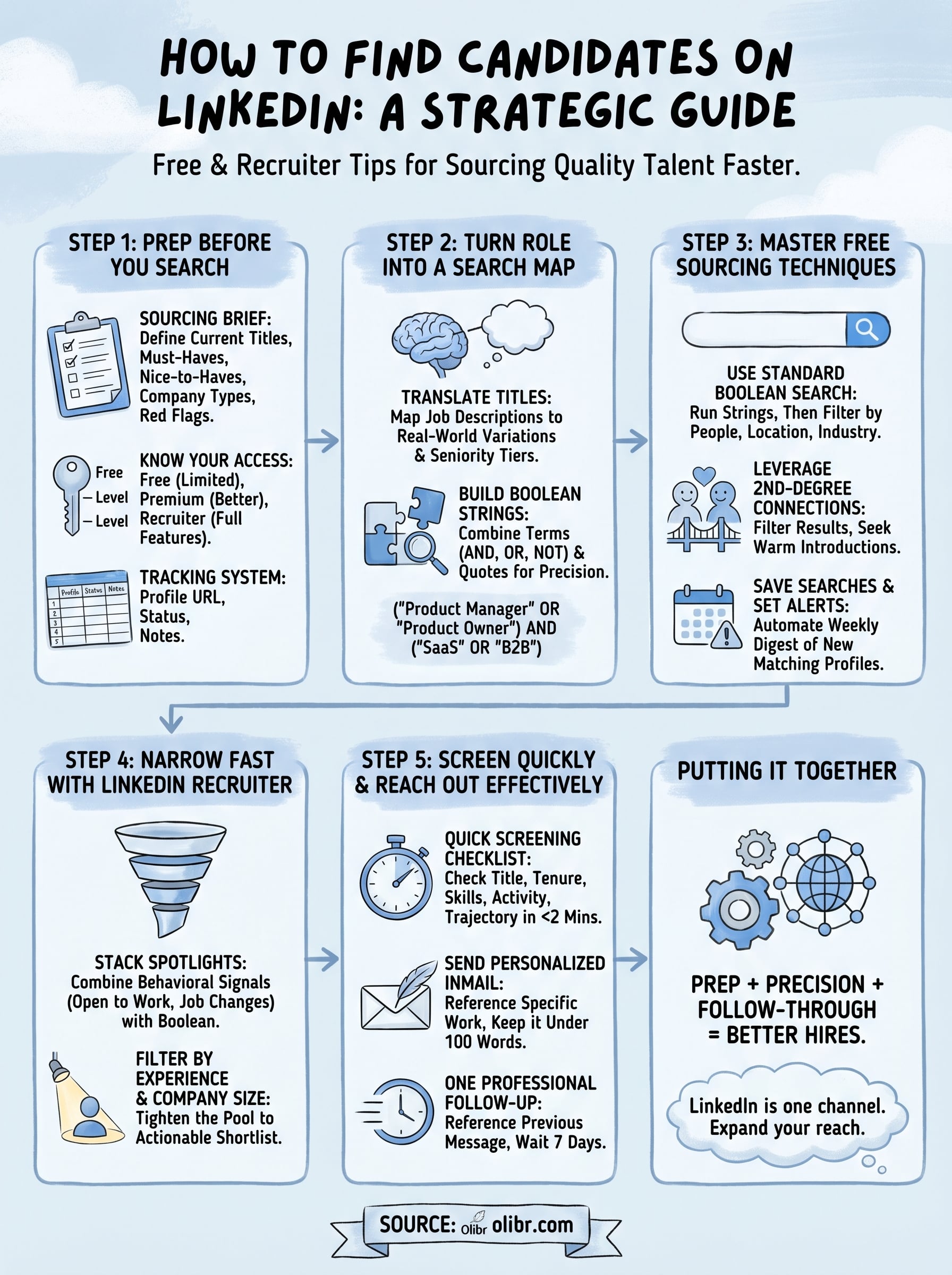
The process of how to find candidates on LinkedIn comes down to preparation, precision, and consistent follow-through. You build a sourcing brief before you open LinkedIn, translate that brief into Boolean strings that match how real candidates describe themselves, and apply structured screening criteria before you spend a single InMail credit. Each step feeds directly into the next, so gaps in early preparation show up as wasted time during outreach.
LinkedIn is a strong channel, but it works best as part of a broader sourcing strategy. When you add a larger searchable talent pool to your process, your hit rate goes up and your time-to-hire goes down. Search 180,000+ candidate profiles on Olibr for free and use AI-powered matching to surface candidates who fit beyond keyword overlap. Set up your account today and run your first search alongside your LinkedIn sourcing to see the difference immediately.
For hiring teams
Search 180,000+ candidate profiles — free.
Olibr is a community-funded recruiting platform: full ATS, AI interviews, and a shared resume database. No per-seat fees.